
A local roofer may see plenty of website activity but still have no idea why the phone isn't ringing. A dentist may watch visitors arrive on a service page, abandon the inquiry form, and leave without revealing whether the problem was weak messaging, a slow page, or an untracked call. Visitor counts alone can't answer those questions.
Google Analytics 4, or GA4, becomes useful when it connects visitor behavior to business outcomes, such as phone clicks, completed forms, appointment requests, and qualified inquiries. This guide focuses on Google Analytics for website visitors from a service-business perspective, with practical steps for setup, privacy, troubleshooting, and conversion optimization.
Table of Contents
- Introduction to GA4 for Website Visitors
- Account and Property Setup
- Installing GA4 on WordPress with Tag Manager
- Exploring Key Metrics and Reports
- Configuring Event and Conversion Tracking
- Ensuring Privacy and Compliance
- Troubleshooting and CRO Recommendations
Introduction to GA4 for Website Visitors
A service-business owner usually doesn't need a prettier traffic chart. They need to know which visitors became leads, which pages persuaded them to contact the company, and where potential customers stopped moving toward an inquiry.
GA4 supports that work through an event-based measurement model. Instead of treating a visit as the complete story, it records interactions such as page views, form submissions, phone-link clicks, file downloads, and other actions. That structure fits lead generation better than a report that only counts sessions.
Google launched GA4 in October 2020, and it became the official analytics standard after Universal Analytics sunset in July 2023. By 2026, more than 14 million websites were running GA4, with estimated usage growth of 94% compound annual growth since launch, according to reported GA4 adoption figures.
Google Analytics itself dates back to November 14, 2005, when Google acquired and rebranded Urchin. By 2026, it was installed on roughly 43% of all websites and held about 78% of the market among sites using a detectable traffic analysis tool, based on independent web analytics technology data.
That reach doesn't make an unconfigured property valuable. A correctly implemented GA4 setup gives a dentist, roofer, law firm, or HVAC company a clearer connection between visitor source, page behavior, and lead action.
Account and Property Setup
Start with ownership, not tags. The person responsible for the business website should own or control the Google account, GA4 property, and Google Tag Manager container. Agencies and contractors can receive access, but the business shouldn't depend on an outside vendor to recover its own measurement system.
Build the account structure first
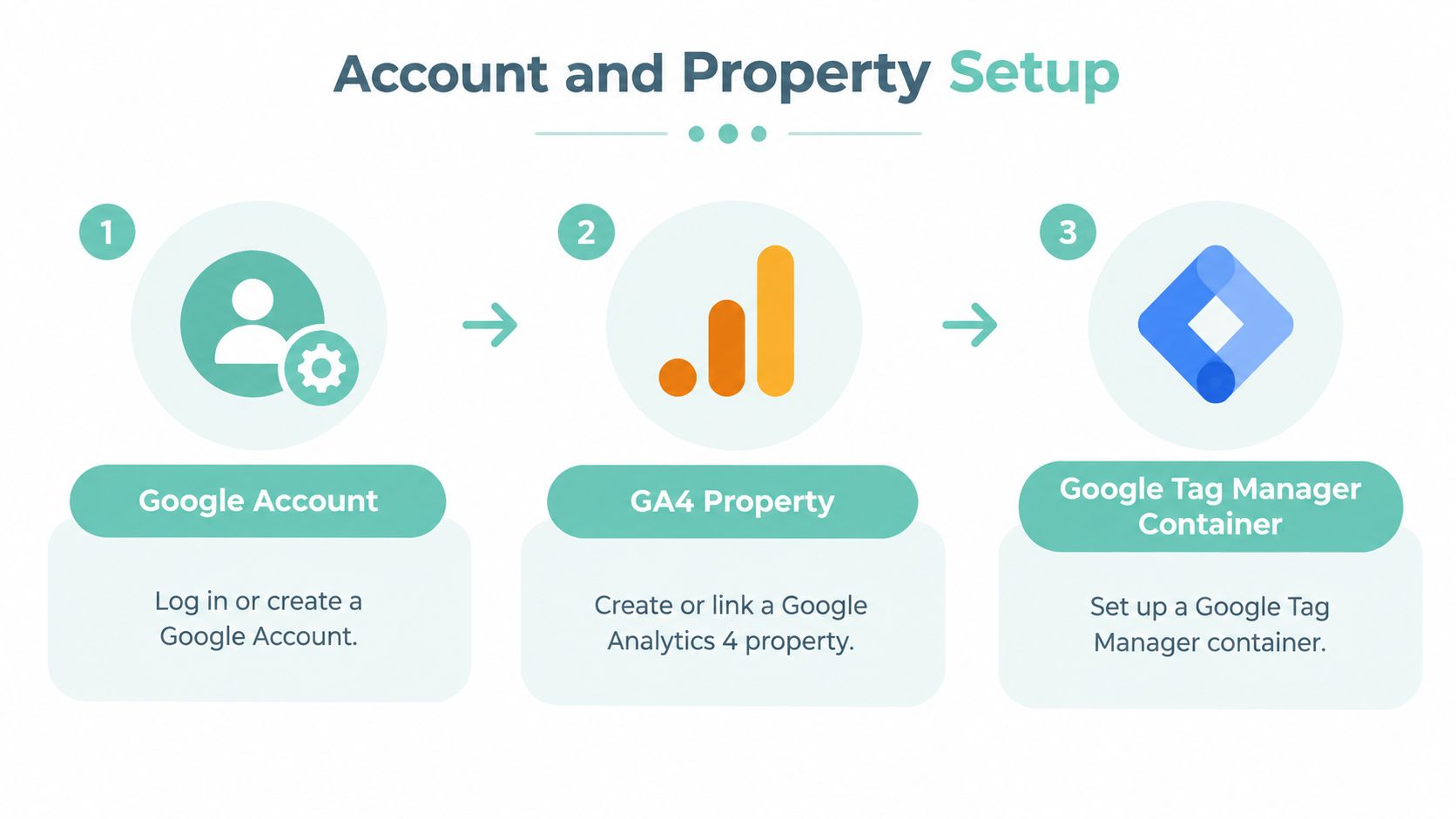
Create or confirm these assets:
- Google Account: Use a business-controlled account rather than an employee's personal login.
- GA4 property: Create a property for the business, then select the appropriate reporting settings.
- Web data stream: Add the website URL and verify that the stream represents the correct domain.
- Google Tag Manager container: Create a web container for the site and record its container ID.
- Access permissions: Give owners, editors, and analysts only the access each person needs.
A single business with one website usually needs one property and one web stream. A company with multiple locations should decide whether the sites share the same domain and customer journey before separating data. Separate properties can make local reporting cleaner, but they can also fragment the customer journey and complicate comparisons.
Set the settings that affect interpretation
Choose the correct time zone and currency before meaningful data accumulates. A time zone mismatch can place calls and form submissions on the wrong reporting day, while an incorrect currency setting can make downstream value reporting confusing.
GA4 also asks how it should identify users in reports. Select a reporting identity that suits the business's privacy position and measurement needs. Don't enable features such as Google Signals automatically. Discuss the legal basis, consent experience, and intended use with the business's privacy adviser.
Consent settings deserve attention before installation. If the site uses a consent banner, configure the tag behavior so analytics storage reflects the visitor's choice. A tag that fires before consent can create both compliance risk and misleading comparisons between consented and non-consented traffic.
Finally, verify the Measurement ID shown in the web stream and compare it with the ID used in Tag Manager. A single wrong character can leave the property apparently empty while another property receives the data.
Practical rule: Treat the GA4 property, data stream, and GTM container as business assets. Document ownership and access before anyone starts implementation.
Installing GA4 on WordPress with Tag Manager
Google Tag Manager gives WordPress teams a flexible deployment layer. You can change event tags, triggers, and parameters inside GTM without repeatedly editing theme files, which matters when a service company later adds phone tracking, form tracking, chat measurement, or landing-page experiments.

Add the GTM container to WordPress
You have two common implementation paths.
- Use a reputable GTM plugin: Install a maintained plugin that supports placement of the container code, enter the container ID, and confirm that it adds the required snippets in the correct locations.
- Use the theme or site-header system: Add the GTM snippets through the site's approved header and body insertion method. Avoid editing a parent theme directly, because updates can overwrite the change.
- Use a developer-managed integration: A developer can place the snippets in the template or through a site-specific plugin, which provides more control when the site has a custom theme or strict deployment process.
The container ID isn't a secret credential, but you still need to protect the GTM account. Don't publish changes without review, and don't give every plugin or contractor administrator access.
Create the GA4 tag
Inside Google Tag Manager:
- Create a new tag and choose the Google tag or GA4 configuration option available in the container.
- Enter the web stream's GA4 Measurement ID.
- Set the tag to fire on the appropriate initial page-load trigger, normally all pages after consent requirements are satisfied.
- Save the tag without publishing immediately.
- Open GTM Preview mode and load the WordPress website.
- Check that the tag fires once on a normal page view.
- Use GA4 DebugView and Realtime to confirm that the property receives the visit.
Enhanced Measurement can provide useful baseline events, including page views, outbound link clicks, site search, video engagement, scrolling, and file downloads. It won't replace custom GTM work for an internal appointment button, a telephone link, or a form that submits through a script without a new page load.
Test before publishing
Test the homepage, service pages, contact page, mobile navigation, and any location pages. Look for duplicate page-view events, tags firing before consent, and tags sending data to the wrong property.
A frequent WordPress mistake is installing GA4 directly through a plugin while also deploying it through GTM. Both implementations can send similar events, producing inflated reports. Choose one primary deployment method for the base Google tag and keep the event architecture in one documented system.
After testing, submit a version in GTM with a meaningful description. Record the Measurement ID, consent behavior, event naming conventions, and the date of the change. That documentation makes future troubleshooting much faster.
Exploring Key Metrics and Reports
GA4 reports become easier to use when each metric answers a business question. A service company shouldn't begin with every available dimension. Start with the path from acquisition to engagement to inquiry.
Use reports for different decisions
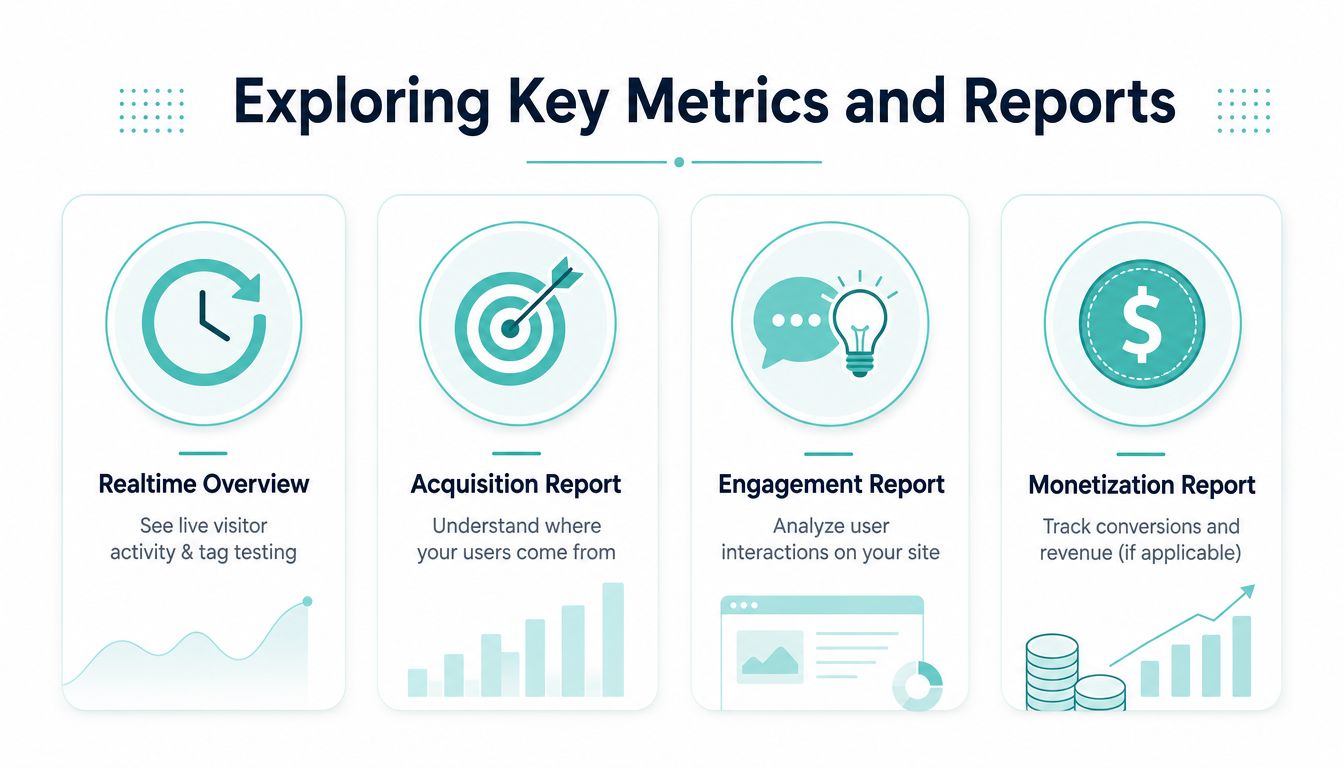
| GA4 area | Question for a service business | Useful interpretation |
|---|---|---|
| Realtime | Is the new tag receiving activity? | Use it for implementation checks, not long-term conclusions. |
| Acquisition | Where did visitors come from? | Compare organic search, referrals, direct traffic, and campaign traffic. |
| Engagement | What did visitors do? | Review landing pages, events, engagement time, and key events. |
| Monetization | Is there measurable value? | Use it when the business has relevant revenue or value data. |
Active users describe users GA4 considers active during the selected period. Sessions describe visits, while engagement metrics help distinguish passive page loading from meaningful interaction. For service companies, the most important report often isn't the one with the largest visitor total. It's the report that shows which landing pages and channels assist phone clicks or completed forms.
A law firm, for example, might compare a practice-area page with a location page. If the location page attracts visitors but produces few phone-click events, the team can inspect its call-to-action visibility, trust signals, mobile layout, and form path. GA4 won't explain the entire reason for a missed lead, but it can identify where the investigation should begin.
Interpret counts with measurement limits
Visitor data isn't a perfect headcount. One independent comparison reported GA4 undercounting by 11.2% on sites without a consent banner and 20.3% on sites with one, illustrating how privacy controls affect capture rates. Those figures come from an independent comparison of Google Analytics traffic accuracy, and the operational lesson is more important than treating either value as a universal correction factor.
Use GA4 for directional questions such as whether organic traffic is strengthening, whether a new service page is attracting engagement, or whether phone-click activity changes after a redesign. Don't claim that the platform captured every visitor or every lead unless you have validated it against another first-party system.
For clients who need a clearer reporting view, a dashboard can combine rankings, organic traffic, landing-page behavior, calls, and forms. A practical reference on organizing client-facing views is SEO reporting dashboards for better client reports. For broader conversion thinking beyond visitor reports, review these ecommerce conversion strategies and adapt the principles to lead-generation journeys.
Configuring Event and Conversion Tracking
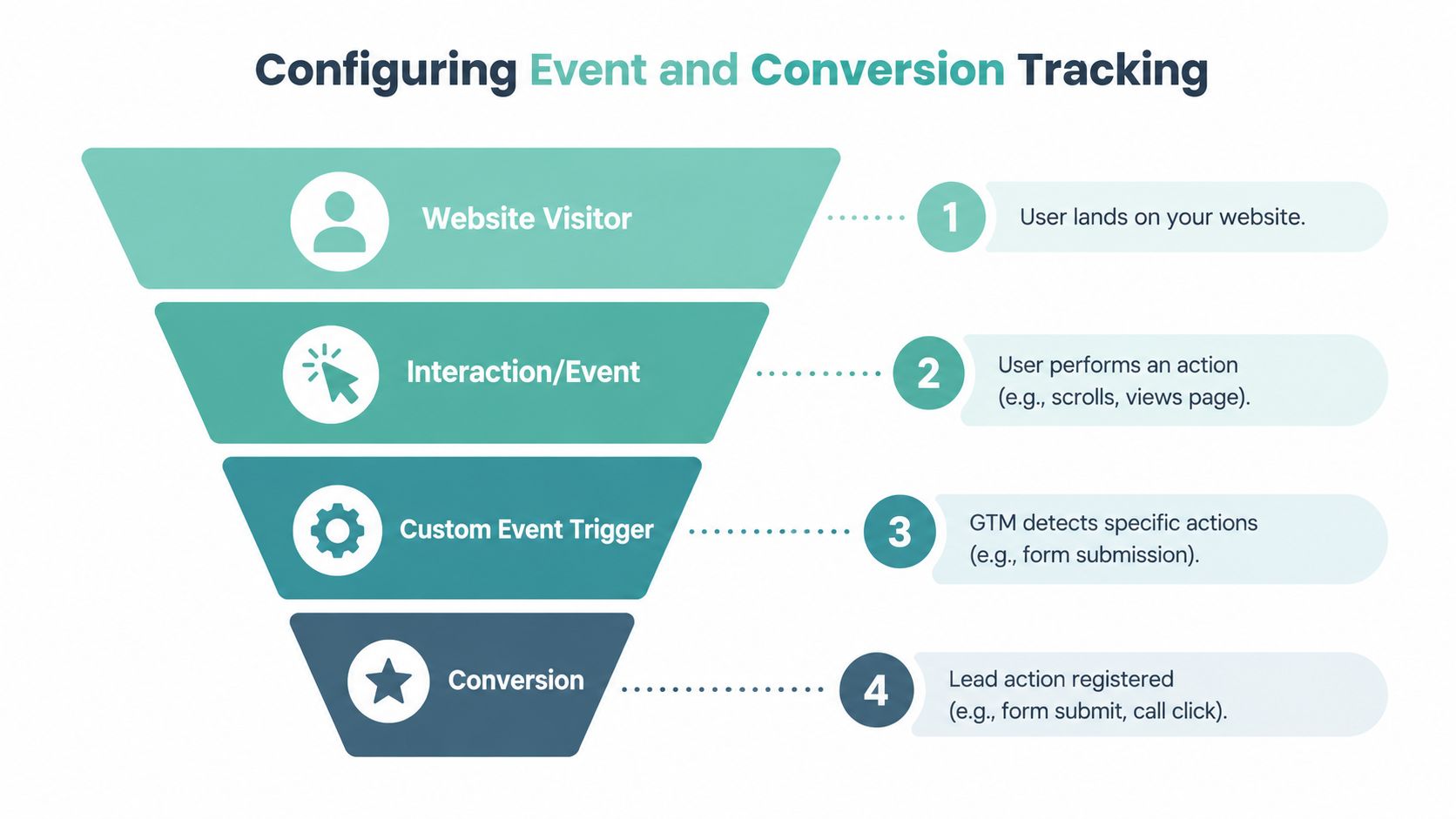
A visitor becomes commercially meaningful when the site records an action that helps the business respond. For a local service firm, that usually means a submitted inquiry form, a click on a tel: link, an appointment request, a chat initiation, or a valuable download.
Start with the lead actions
Write down the actions that represent genuine business value before opening GTM. Separate primary actions from supporting interactions.
- Form submission: Fire the event only after successful validation, not merely when someone presses the submit button.
- Phone click: Track clicks on
tel:links, including the page and link location where possible. - Chat initiation: Measure the opening of a chat conversation, while recognizing that an open chat isn't automatically a qualified lead.
- Appointment request: Track the confirmation state or successful booking step rather than the first calendar interaction.
- Newsletter signup: Keep this as a secondary event unless the newsletter directly supports the service firm's sales process.
Use clear lowercase event names with underscores, such as phone_click, generate_lead, or appointment_request. Add useful parameters, including the page path, button location, service category, or link text. Don't send names, email addresses, phone numbers, message contents, or other personal information to GA4.
Build the trigger in GTM
For a phone link, enable the relevant click variables in GTM and create a link-click trigger that fires when the click URL begins with tel:. For a button that isn't a true anchor element, use an all-elements click trigger and target a stable ID, class, or data attribute. Avoid targeting changing CSS classes generated by page builders.
Create a GA4 event tag with the selected event name and parameters, then connect it to the trigger. In Preview mode, click the phone link on both desktop and mobile layouts. Confirm that the tag fires once and that the parameters contain the expected values.
Forms require more care. A browser event may fire when the visitor attempts submission even if required fields fail validation. A thank-you page, confirmed success message, or developer-provided data-layer event usually provides a stronger trigger. Test errors, duplicate submissions, spam responses, and AJAX forms separately.
For a broader framework on improving lead journeys, Digital Skyrocket's guide to conversion rate optimization provides useful context for connecting measurement with page and form decisions.
Mark only meaningful events as conversions
GA4 now uses the term key event for important interactions. Mark the events that represent a real lead or a strong step toward one. Don't mark every scroll, page view, or navigation click as a conversion, because the resulting reports will make the business appear healthier without improving lead quality.
After implementation, confirm the event in DebugView, inspect its parameters, and verify that it appears in the event list. Then compare GA4's recorded leads with the form inbox, call system, or CRM. That reconciliation catches tracking gaps that interface testing alone won't reveal.
Ensuring Privacy and Compliance
GA4 measures pseudonymous interactions, not named customer profiles. It isn't designed to store names, email addresses, phone numbers, or full IP addresses, so a visitor count should be explained as aggregated behavior rather than a list of identifiable people. Google's GA4 data privacy documentation describes this measurement model and the information GA4 does not retain.
Consent configuration still matters. A business should decide which storage categories require permission, when analytics tags may run, and how the site communicates those choices. Consent Mode can help tags respond to consent states, but it doesn't remove the need for a properly designed banner, a documented legal basis, or advice appropriate to the business's jurisdictions.
Choose retention intentionally
GA4 lets property owners set user-level data retention to 2 months or 14 months. For other event data, the available options include 2 months, 14 months, or 26 months for Analytics 360 properties, as documented in Google's data retention settings. Select the shortest period that supports legitimate reporting and analysis.
Retention settings don't replace a broader privacy policy. Review connected tools, form platforms, call tracking services, CRM records, and exported reports as part of the same data inventory.
Read consent-state cohorts carefully
Consent banners, ad blockers, browser restrictions, and configuration choices can create systematic blind spots. Compare consented and non-consented cohorts where the setup allows it, and use trends for decision-making rather than presenting absolute visitor totals as exact customer counts.
Google Signals and demographic features also require careful judgment. If a business doesn't need audience modeling or advertising-related functionality, it shouldn't activate optional features without understanding the privacy and consent implications. The right setup collects enough information to improve the customer journey while avoiding unnecessary personal or behavioral detail.
Troubleshooting and CRO Recommendations
A missing lead in GA4 can come from a broken tag, an incorrect trigger, a consent decision, a form workflow that never sends the expected browser event, or a genuine absence of inquiries. Debugging should therefore begin with the technical path and end with the customer path.
Find the measurement break
Use GTM Preview mode to inspect the event sequence. Select the page load, click, form interaction, or confirmation event and check whether the intended tag fired. Then open GA4 DebugView to confirm that the event arrived with the expected name and parameters.
Check these failure points in order:
- Wrong property: Compare the Measurement ID in the tag with the web stream.
- Duplicate installation: Look for a plugin, theme snippet, and GTM tag all sending the base configuration.
- Unstable selectors: Replace page-builder classes that change with a stable ID or data attribute.
- Consent blocking: Confirm whether the tag should fire before or after the visitor grants permission.
- AJAX forms: Trigger on the confirmed success state rather than a generic button click.
- Reporting delay or thresholds: Validate the event in DebugView before judging standard reports.
GA4 reporting can become sampled when a query exceeds roughly 500,000 visits in a standard property for a selected date range. Estimates are usually within about 10% for the visits metric, but testing of Google Analytics sampling warns that deviations can become much larger in some report configurations, especially for large segments or revenue analysis. Narrow the date range, reduce segment complexity, or validate against an unsampled export before making a major decision.
Turn visitor behavior into page improvements
Once the implementation passes its technical checks, look for pages with strong acquisition but weak lead activity. Review the first screen on mobile, the clarity of the service offer, the prominence of phone and form calls to action, proof of local credibility, and the number of fields required.
Test one meaningful change at a time. A clearer phone button, a more specific form label, stronger service-area language, or a shorter inquiry path can make a page easier to use. GA4 can show whether key events change, but the business should also assess lead quality, missed calls, spam, and signed work.
For teams evaluating alternatives to cookie-dependent measurement, a practical resource on achieving accurate cookieless analytics can help frame the trade-offs. For a broader technical and content review, use a structured website audit checklist rather than relying on one report.
The most useful workflow is simple: verify the data, identify the page or source with the clearest opportunity, improve the lead path, and compare qualified inquiries over time. Digital Skyrocket is one option for service businesses that need WordPress development, technical SEO, local SEO, AEO, analytics instrumentation, reporting, and ongoing conversion optimization aligned with calls and forms.
Digital Skyrocket builds and optimizes lead-generating websites for law firms, dentists, roofers, HVAC companies, and other service businesses, connecting GA4 measurement with SEO, page structure, calls, and form submissions. Visit Digital Skyrocket to discuss a website and ongoing SEO plan built around qualified inquiries, not visitor counts alone.