
The fastest moment to act is usually the messy one. A customer just left a good job site review in person, your Google listing has a handful of stars, and you realize your competitor down the street has turned every happy customer into a visible asset while you're still sending people to search for your business manually. A direct Google review link fixes that friction, and it's the difference between “I meant to leave one” and an actual posted review.
Table of Contents
- Why You Need a Direct Google Review Link
- Using the Place ID Finder Method
- Generating a Link From Google Business Profile
- Sharing a Review Link Through Google Maps
- Troubleshooting Common Link Problems
- Asking for Reviews Without Breaking Google's Rules
- Your Quick Action Checklist
Why You Need a Direct Google Review Link
A review request works better when it removes every unnecessary step. If someone has to search for your business, pick the right listing, scroll, find the rating box, and then open the composer, you've already created places where the request dies. A direct link sends them straight to the review flow, which is what you want whether you're asking at the counter, in a follow-up email, or in a text after a completed service.
That same direct path also makes your offline materials more useful. A QR code on an invoice, a postcard, a thank-you card, or a fridge magnet gets a lot cleaner when it opens the review start screen instead of a general profile page. For local businesses, that matters because every extra tap reduces follow-through.
Google now gives you three official paths that end at the same review composer, Business Profile, Google Maps share, and the Place ID-based URL documented in Google's help materials. The workflow is different, but the destination is the same. What changes is how reliably the link survives mobile quirks, multi-location setups, and interface changes.
Practical rule: the easiest method today is not always the one you want to print on a truck wrap or bake into a multi-location template.
Using the Place ID Finder Method
The Place ID route is the fallback I trust when I need one link format that behaves the same way across accounts, devices, and locations. It's especially useful when the profile dashboard isn't accessible, when the listing setup is still messy, or when a brand needs a repeatable template for a spreadsheet of locations.
Build the link from the identifier
Start with Google's Place ID Finder and enter the exact business name. If multiple listings appear, narrow it by city and address so you don't grab the wrong location. Then copy the Place ID string and drop it into Google's review URL pattern, ` which Google documents as the direct start link for reviews. Google also says the profile UI can generate a shareable review link directly, but the Place ID format is the one that stays easy to rebuild when interfaces shift.
Before you send anything to customers, open the link in an incognito window and make sure it lands on the correct business with the expected address and category. That quick check saves you from sending reviews to a duplicate listing or the wrong branch. For a visual reference of the finder workflow, use the screenshot below.
A few reliability notes matter here. Older Android Chrome setups can bounce between apps and the browser, so the direct search.google.com form is usually the cleanest fallback when a redirect loop shows up. If you manage several locations, this is also the safest format to store in a shared sheet, because it gives your team one canonical URL per listing instead of a link tied to a dashboard session.
Generating a Link From Google Business Profile
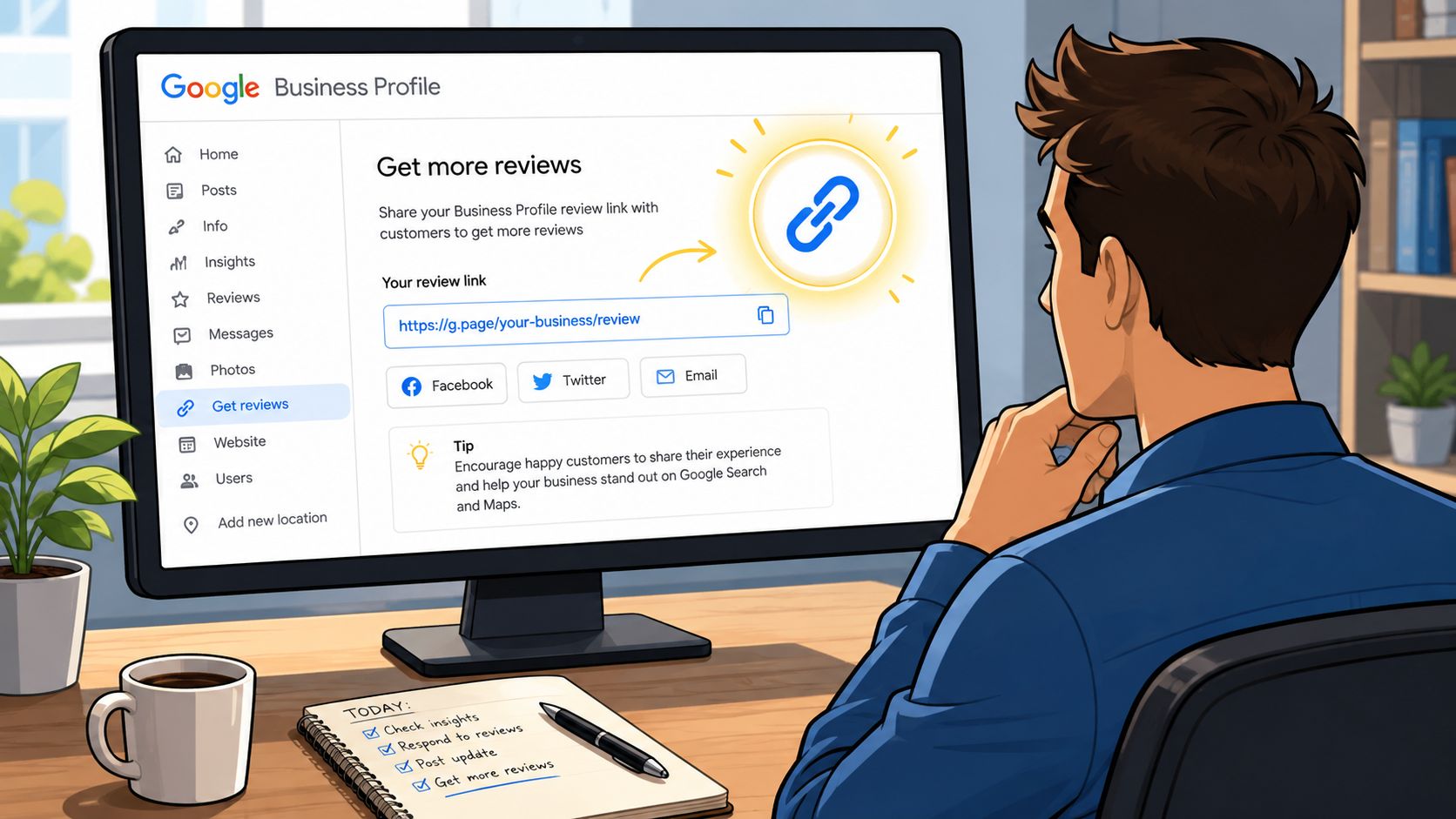
Google's Business Profile dashboard is the quickest path for a verified owner on desktop. If the account doesn't own the profile, stop there, because the review link tools won't help you. The right login matters more than the device, and agency accounts without ownership access often waste time looking for buttons they'll never see.
Find the review link inside the profile
Sign in at business.google.com, choose the location, then look for Home, Read reviews, or Get more reviews. Google's own workflow says to open the Business Profile, select Read reviews or Get more reviews, then copy the link or QR code that Google generates for sharing. The Read reviews panel can also expose the link under the three-dot menu, and the Get more reviews button returns the same review URL. If the dashboard offers a phone number or shortened link variation, treat that as a convenience feature, not your master copy.
Test the link in a private window before distributing it. You want the correct business name, address, and category to appear, plus the star selector to open cleanly. If the category has recently changed, or ownership moved, recheck the generated link before you reuse it in templates.
This path is fast, but it's not the one I'd rely on alone for a brand that lives in spreadsheets and shared assets. Google has moved the button labels and panel placement before, so pairing the dashboard link with the Place ID version keeps you from rebuilding everything when the UI shifts. If your local SEO workflow already includes map-driven optimization, the article on local map optimization fits naturally with this setup.
Sharing a Review Link Through Google Maps
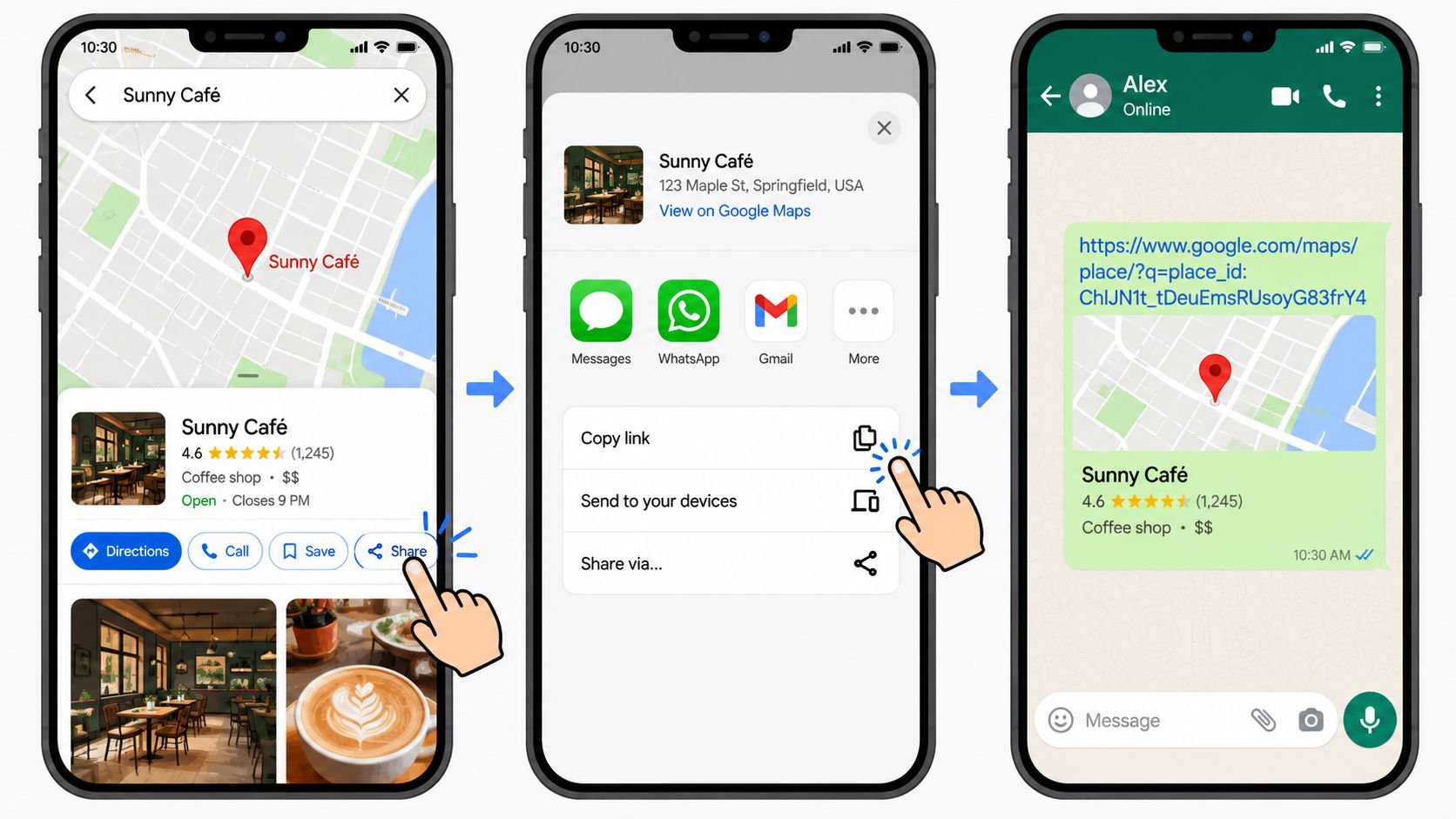
A front-desk rep with only a phone in hand usually ends up here. Google Maps is practical for that situation, but it only works if you pull the right link. The regular share link sends someone to the listing. The review link opens the rating flow.
Open Google Maps on desktop or mobile and search the exact business name. Choose the correct listing, then open the star rating below the name to bring up the reviews panel. From there, use Share review and then Send a link, which Google documents as the path for sharing an individual review permalink. That is the version I use for email, SMS, and QR codes, because it points directly at the review prompt instead of the storefront screen.
The distinction matters. A navigation link helps someone get to the address. A review link helps them leave feedback without extra taps.
Here is the practical split across the three official paths:
| Use case | Best path | Why it fits |
|---|---|---|
| One verified desktop owner | Business Profile | Fast when the owner already has access |
| Staff member on a phone | Google Maps share review link | Works without dashboard access |
| Printed signage or shared templates | Place ID URL | Easier to rebuild and keep consistent |
For a single location, the Maps route is often enough. For multi-location brands, I would not treat it as the master source. Google has changed button labels and panel placement before, so a team that stores only the Maps flow in its playbook ends up redoing links when the interface shifts. Keep the canonical Place ID link for each branch in one spreadsheet, then generate the QR codes, email signatures, and text templates from that record.
That setup holds up better across devices, especially when staff members switch between desktop, iPhone, and Android. It also keeps internal requests clean. Review requests should point to the review flow, while directions and storefront links should stay separate so nobody sends customers to the wrong screen by mistake.
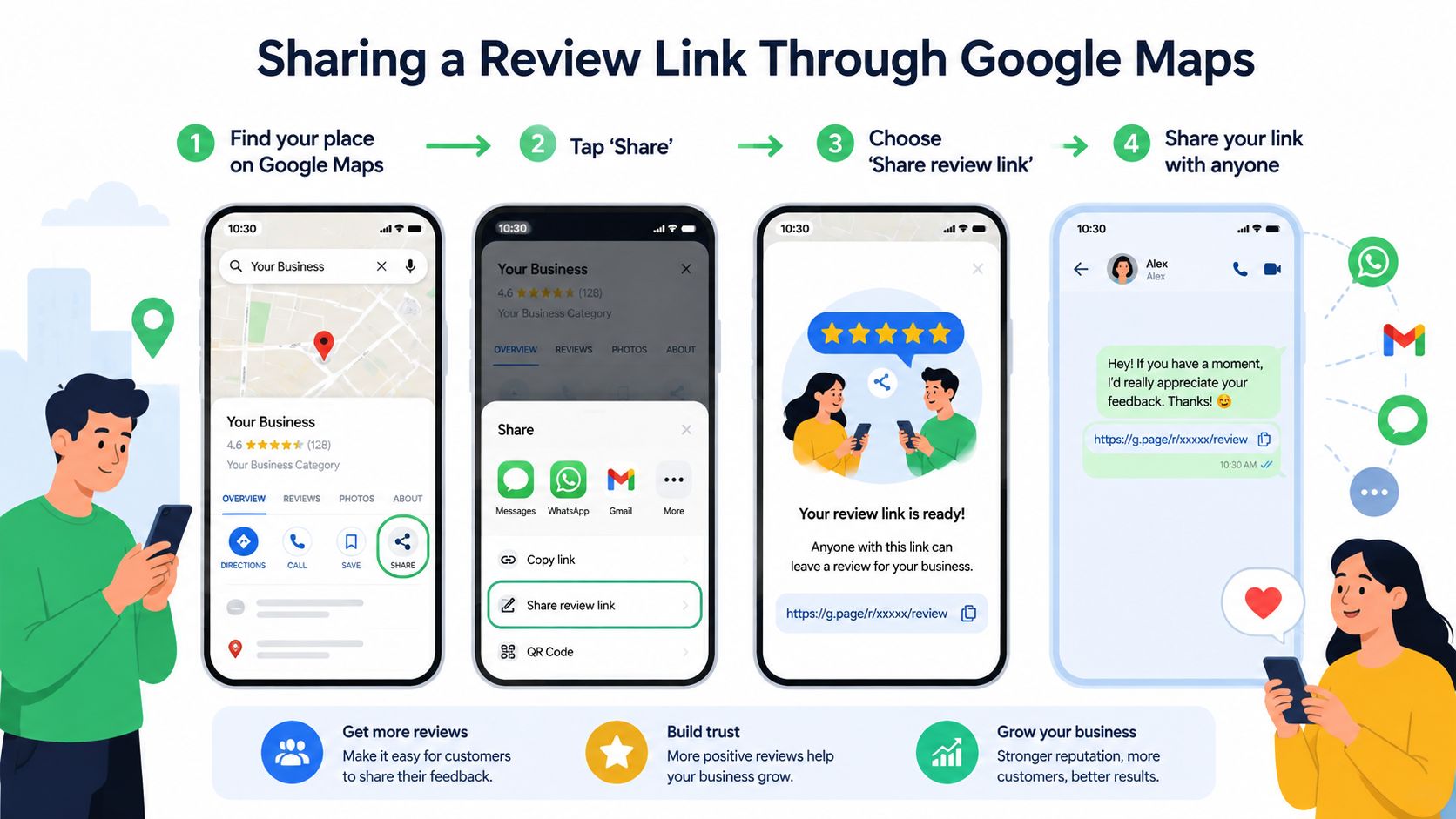
The Maps share path is the one front-desk staff can actually use on a busy day. If they can't reach the dashboard, they can still generate the right link from the phone in their hand.
Troubleshooting Common Link Problems
Most broken review links fail in the same few ways, and each symptom points to a different fix. If the link opens the Maps storefront instead of the rating box, you probably copied a generic listing URL rather than the review permalink. Rebuild it through the reviews panel's Share button, or switch to the Place ID review format from Google's help page.
If the link opens the wrong location, check for a duplicate business or the wrong Place ID. The quickest fix is to compare the Place ID in the URL against the verified listing in Google's Place ID Finder. Similar names can look fine in a spreadsheet and still send customers to the wrong place.
On iPhone or iPad, shortened links and app handoffs can loop between Safari and the Maps app. When that happens, use the full search.google.com/local/writereview?placeid= version instead of a redirected variant. For a deeper look at why reviews may not surface as expected after a link works, the guide on Google reviews not showing up is a useful companion.
If the star selector never appears, the listing may be closed, unverified, or restricted from accepting new reviews. Check the Business Profile itself before assuming the link is broken. I also test every link in Chrome on desktop, Safari on iOS, and Chrome on Android before I put it into a live template, because each browser handles redirects a little differently.
Asking for Reviews Without Breaking Google's Rules
Google lets businesses ask for reviews, but the ask has to stay neutral. You can request feedback, but you can't pressure someone to leave a positive rating, require them to write a review on-site, or tell them what to say. You also can't trade incentives for reviews, and you can't use review stations or bulk outreach tied to compensation. That line matters because a perfect link still becomes a problem if the request violates policy.
A clean request sounds like a request for honest feedback. A risky request sounds like a transaction. If the customer thinks a discount, gift card, or raffle entry depends on the review, the process has already crossed the line. Google's policy on contributions is the standard here, so the link should support the ask, not manipulate it.
For teams that want a fuller playbook on wording and timing, the Growth 4 Trades review guide is a solid companion resource. It pairs well with a local SEO workflow, and it helps you think through the request itself instead of treating the link as the whole strategy. If you want a shorter internal reference, keep how to ask for reviews close to your template library.
Use short scripts that sound like a human, not a campaign:
- Email: “Thanks again for trusting us with the job. If you'd be willing to share honest feedback, here's the link to our Google review page.”
- SMS: “Thanks for choosing us today. If you have a minute, would you mind leaving honest feedback here?”
- In person: “If the service met your expectations, you can scan this and leave an honest Google review.”
The best time to send that request is while the experience is still fresh. A direct link shortens the path from goodwill to action, which is exactly why it works so well in email signatures, receipt footers, and post-service texts. I've also seen it fit naturally into a reputation-management workflow, including the kind of direct-review setup discussed in Digital Skyrocket's own review-link content, without turning the ask into a hard sell.
Your Quick Action Checklist
A clean rollout takes less time than most owners expect when the steps are lined up in the right order. Start by confirming the Business Profile is verified and the business name matches signage exactly, because mismatches can throw off Place ID lookups and duplicate detection. Then build the link through the Place ID Finder, and compare it with the dashboard-generated version if you have access.
Seven steps to launch today
- Verify the listing details. Make sure the name, address, and category match the live profile.
- Pull the Place ID. Build the
search.google.com/local/writereview?placeid=link from that identifier. - Cross-check the dashboard link. If you have owner access, confirm both URLs point to the same listing.
- Test in private browsing. Use incognito Chrome on desktop before you trust the link.
- Test on mobile. Open it in Safari on iOS and Chrome on Android to catch redirect quirks.
- Drop it into your touchpoints. Add it to email signatures, SMS templates, receipts, and a QR code at the counter.
- Recheck it monthly. Audit the link and look at incoming reviews for policy issues or listing changes.
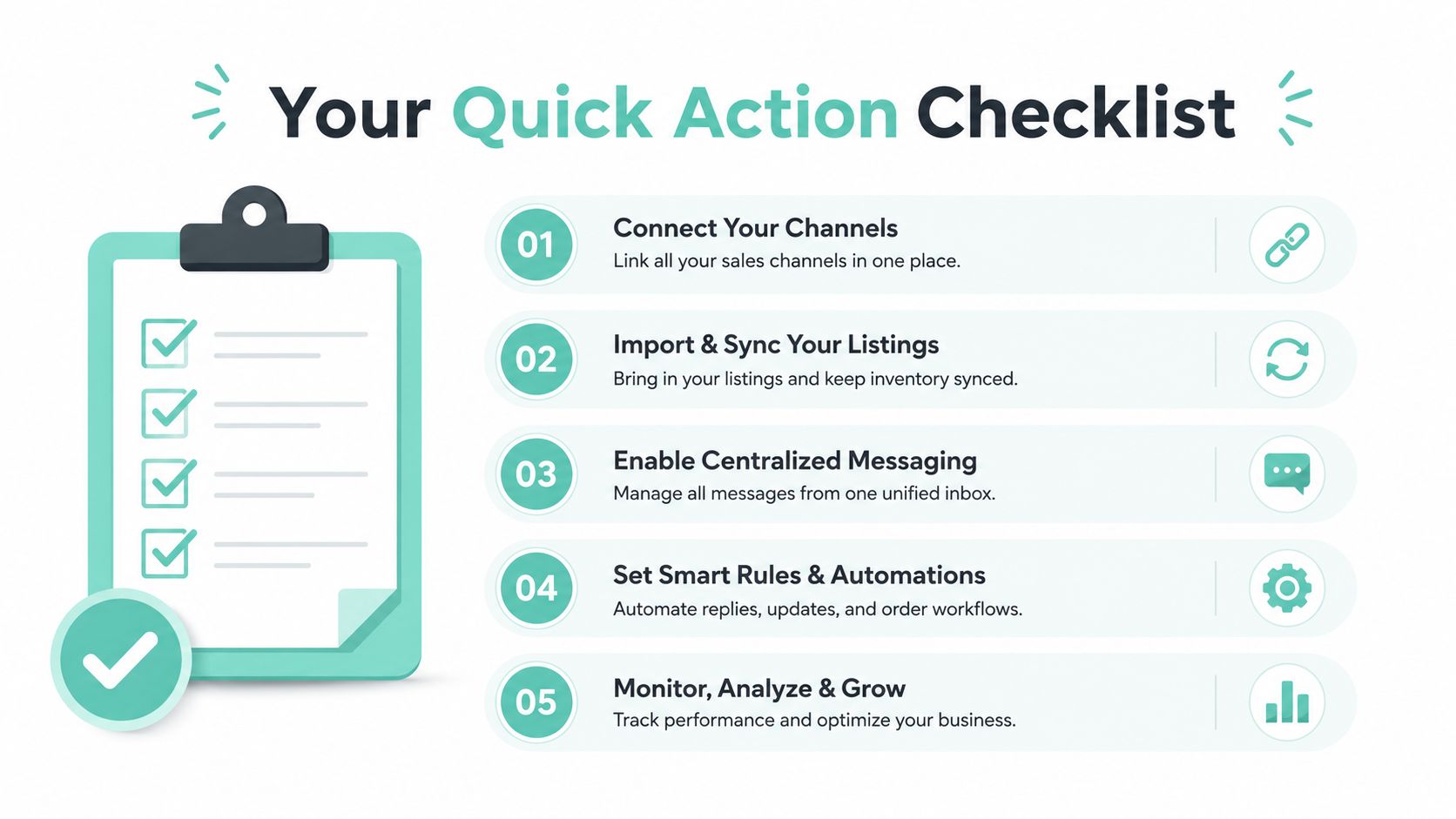
The shortest path forward is simple. Pick one method, generate the link today, and get it into one customer touchpoint before the week ends.
If you want this handled by a team that builds local visibility into the site itself, Digital Skyrocket plans and develops lead-focused websites, local SEO, and reputation-management workflows for service businesses. Visit Digital Skyrocket if you want a direct review-link setup tied to a cleaner site, stronger local search presence, and a smoother path from customer satisfaction to posted reviews.