
Your site looks fine on the office desktop. It loads in a blink, the hero photo is sharp, and the contact form works. Then a homeowner in Tyler taps your Google listing on a phone, waits while a slider assembles itself, tries to tap the call button as it jumps down the page, and gives up. That gap between how your site feels to you and how it feels to a mobile visitor is where leads leak out, and it's exactly what WordPress performance optimization should fix first.
Table of Contents
- Core Web Vitals Targets Your WordPress Site Must Meet
- Decide Whether Server or Page Weight Comes First
- Audit Each Template Before You Change Code
- How to Shrink Images, Fonts and Hero Media
- Caching, CDN and Database Cleanup in Order
- Theme, Plugin and Script Fixes That Keep Lead Forms Working
- Test, Deploy and Confirm the Gains
Core Web Vitals Targets Your WordPress Site Must Meet
Say a roofing company's homepage scores well on a wired desktop connection, but its mobile Largest Contentful Paint (LCP) sits at 2.8 seconds. That isn't a pass with a warning. It's a fail for the visitors most likely to call from a driveway or a job site.
Google judges pages on three field measures. LCP tracks how fast the main visible content appears, Interaction to Next Paint (INP) tracks how quickly taps, clicks, and key presses get a visible response, and Cumulative Layout Shift (CLS) tracks how much content jumps around while loading. According to Google's Core Web Vitals guidance, a page should achieve LCP within 2.5 seconds, INP below 200 milliseconds, and CLS below 0.1, evaluated at the 75th percentile of page visits.
That percentile matters more than most owners realize. If a quarter of your visitors can have a miserable experience and you still pass, imagine what failing means. At least three in four real visits need to clear the bar, on real phones, on real networks. A single fast run in your browser proves almost nothing.
The Three Bands
| Metric | Good | Needs improvement | Poor |
|---|---|---|---|
| LCP (loading speed) | 2.5 s or less | Above 2.5 s up to 4 s | Over 4 s |
| INP (responsiveness) | 200 ms or less | Above 200 ms up to 500 ms | Over 500 ms |
| CLS (visual stability) | 0.1 or less | Above 0.1 up to 0.25 | Over 0.25 |
Run the roofing example against the table. A 2.8-second mobile LCP lands in needs improvement. A hero image that doesn't paint until 4.3 seconds is poor, and a visitor staring at a blank banner for that long rarely waits for the phone number below it.
Lighthouse and other lab tools are diagnostic instruments. They simulate a device and connection so you can find what's slow, but pass or fail comes from field data in Search Console and the Chrome UX Report (CrUX). Treat a green lab score on a failing field metric as a clue that your test conditions don't match your visitors, not as proof Google is wrong.
Practical rule: Record your current mobile and desktop LCP, INP, and CLS for the homepage and two money pages before you change anything. Every later fix needs a number to beat.
Decide Whether Server or Page Weight Comes First
Two sites can post the same ugly LCP for opposite reasons. Say a dental practice has a 1.4-second time to first byte (TTFB) and a lean 1.1 MB page. Its server is the problem. Now say a law firm answers in 300 ms but ships a 6 MB homepage. Its server is fine, and its page is the problem. Give the dentist image compression and the lawyer a hosting upgrade, and both stay slow.
Loading is where WordPress sites struggle most. CoreWebVitals.io's WordPress dataset shows only about 63% of 63,757 audited WordPress sites pass all three Core Web Vitals, with only 70.3% achieving a good LCP and only 31.3% meeting the reported TTFB benchmark. The same dataset shows sites transferring more than 5 MB have a 70% LCP pass rate, compared with 89% among sites transferring under 1.2 MB.
Which Bottleneck to Fix First
| What you measure | What it points to | Fix first |
|---|---|---|
| Mobile TTFB above 800 ms | Server or hosting response | Hosting upgrade, full-page caching, current PHP version |
| TTFB under 800 ms and page over 5 MB | Front-end weight | Image resizing and conversion, font trimming, third-party removal |
| TTFB under 800 ms, LCP over 2.5 s, small page | Render-blocking CSS or JavaScript, or a late LCP resource | Defer scripts and preload the stable LCP image |
| High INP with acceptable LCP | Heavy JavaScript execution | Defer or remove sliders, chat widgets and tag managers |
| CLS over 0.1 | Unsized images, embeds or late-loading fonts | Set width and height, reserve space for embeds |
Read the table top to bottom and stop at the first row that matches. Measure TTFB first, because a slow server delays every asset behind it, and no amount of image work recovers a second lost before the browser receives anything. Page weight comes next, then render-blocking resources, then JavaScript execution.
When the server itself misbehaves intermittently, work through basic diagnosis before you blame WordPress. RDE Technologies' walkthrough of server troubleshooting for business administrators is a useful primer on separating a hung server from a heavy page.
If hosting is the verdict, choose on evidence. Pick a host with server-level page caching, a currently supported PHP version, and a data center near most of your visitors. Compare plans on mobile TTFB measured on the same URL with WebPageTest from one fixed location, not on a marketing claim, and record your current TTFB and LCP before migrating so you can judge the move.
Check the pages that produce revenue, too. A fix that speeds the homepage while the click-to-call button and contact form pages stay slow still costs you inquiries.
Audit Each Template Before You Change Code
Auditing only the homepage is a common mistake in WordPress performance optimization plans. A homepage can pass while a service page with a video header, a blog post loaded with embeds, or a contact page with form and spam-protection scripts performs poorly. Visitors may land on any of these pages from search, so each template needs its own baseline.
Use field data alongside lab tests. WordPress Core's field analysis of the 6.2-to-6.3 transition reported mobile LCP passing-rate increases of 5.6% for classic themes and 2.7% for block themes. Yet the passing rates remained 33% and 44%, respectively. A WordPress upgrade or caching plugin alone does not show whether your important pages meet performance targets.
Start with five URLs: the homepage, a service page, a blog post, a location page, and the page that receives form submissions. Record mobile and desktop LCP, INP, and CLS for each, along with TTFB, total page weight, and request count. Pair the performance baseline with a technical SEO audit checklist to review crawl and indexation issues alongside speed.

Tools for WordPress Performance Measurement
| Tool | Data it gives | Use it for |
|---|---|---|
| PageSpeed Insights | Field CrUX data plus lab Lighthouse results | Checking field status and reviewing lab diagnostics for each URL |
| Search Console Core Web Vitals report | Grouped field status across many URLs | Finding which templates fail |
| Lighthouse in Chrome DevTools | Lab metrics and a loading waterfall | Locating render-blocking files and large requests |
| Query Monitor (WordPress plugin) | PHP queries, hooks and HTTP calls per page | Finding slow plugins and duplicate database queries |
| WebPageTest | Waterfall, TTFB and filmstrip from chosen locations | Comparing the same URL before and after a change |
The Baseline Checklist
- Export field data: Group Search Console results by URL pattern so decisions reflect templates, not just individual pages.
- Run PageSpeed Insights: Record both the field verdict and lab diagnostics for each URL.
- Open the waterfall: Identify the largest render-blocking file and the LCP resource on each template.
- Log the environment: Note the plugin count, active theme, and PHP version.
- Save and date it: Record the baseline in a spreadsheet with the date testing began.
CrUX uses a rolling window, so a same-day test cannot confirm a change in field performance. Keep the baseline and compare it with fresh field data as it becomes available.
How to Shrink Images, Fonts and Hero Media
Image work pays off fast, but only when you prioritize ruthlessly. The goal isn't the smallest possible media library. It's the right file, at the right size, loaded at the right moment on each template.
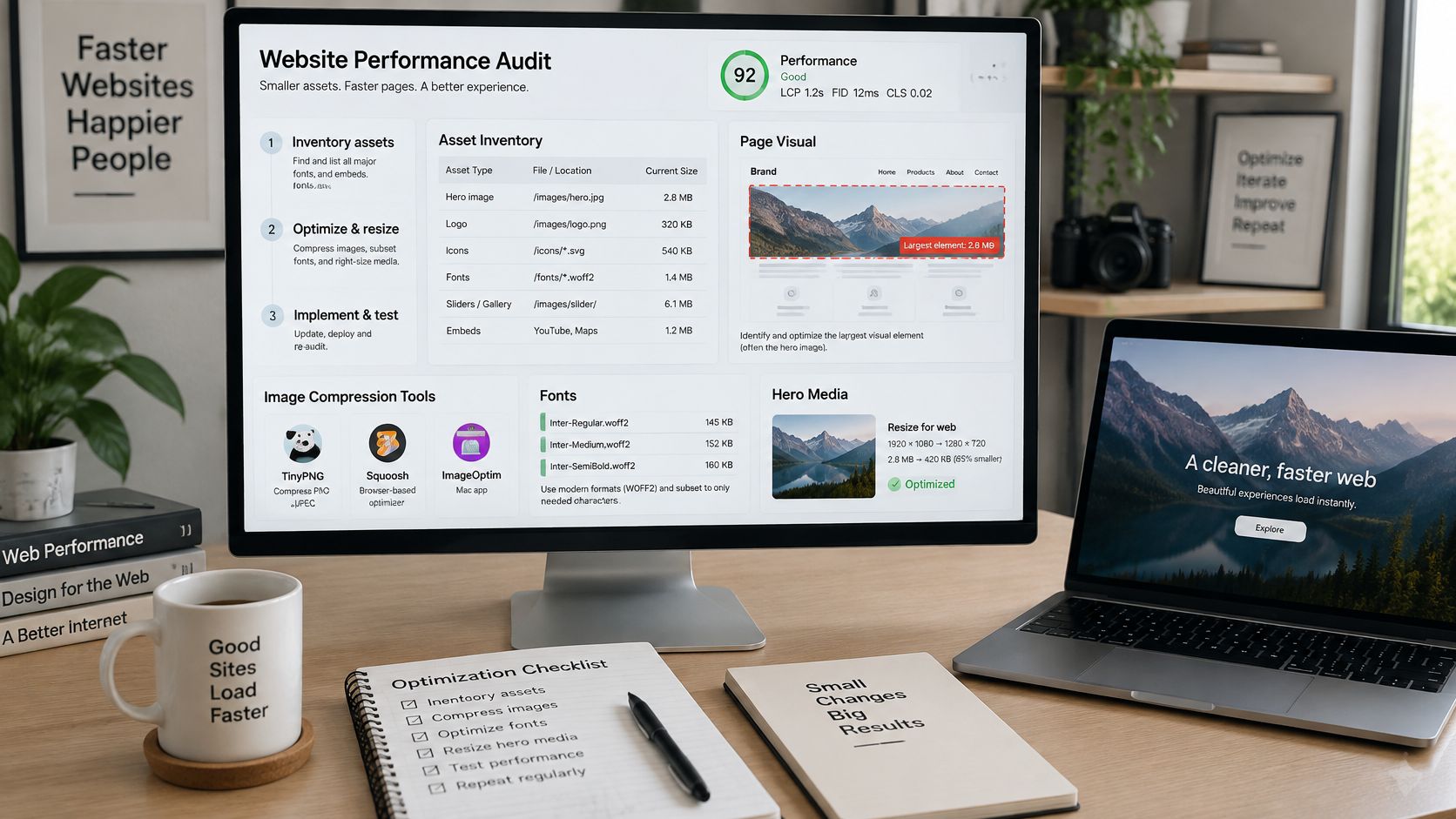
- Inventory each template: List the hero image, logo, icons, fonts, sliders, and embeds. The true LCP element is often a background image or a page-builder block, not the tidy featured image you expected, and WordPress can only prioritize the first likely large content image automatically.
- Remove and resize: Delete images that add nothing, and resize every upload to the width it displays at. A phone shouldn't download a desktop-width photo and shrink it with CSS.
- Convert to WebP: Use a modern format and choose compression by looking at the result on a phone screen. If you can't see a difference at arm's length, neither can your visitor.
- Set intrinsic dimensions: Give every image a width and height so the browser reserves space before the file arrives. The HTTP Archive Web Almanac reported that 72% of mobile pages had unsized images, which is a direct route to layout shift.
- Generate responsive srcset variants: Let the browser pick a file sized for the device instead of forcing one large original on everyone.
- Lazy-load below the fold only: Media the visitor can't see yet can wait. The LCP image cannot, and lazy-loading it delays the exact metric you're trying to improve.
- Preload one asset, not everything: Preload only the LCP image when its identity is stable across the template. Preloading a gallery forces those files to compete with CSS, fonts, and critical scripts.
- Trim the fonts: Cut weights and styles the design doesn't use, and set font-display so text renders in a fallback while the webfont loads. If you self-host fonts, Font Checker Pro's subsetting guide explains how to ship only the character sets your pages need.
One caution before you declare victory. The same HTTP Archive performance data found mobile INP improving alongside a 58% increase in total blocking time. In plain terms, a page can look faster while its JavaScript keeps the browser too busy to respond.
Shrinking images while leaving heavy scripts untouched trades one problem for another. Recheck INP after every image change, not just LCP.
Caching, CDN and Database Cleanup in Order
The most common caching mistake is turning everything on at once, then discovering the contact form serves a stale confirmation or a logged-in page leaks into the public cache. Add the layers in order, test after each, and attach one clear risk to each step.
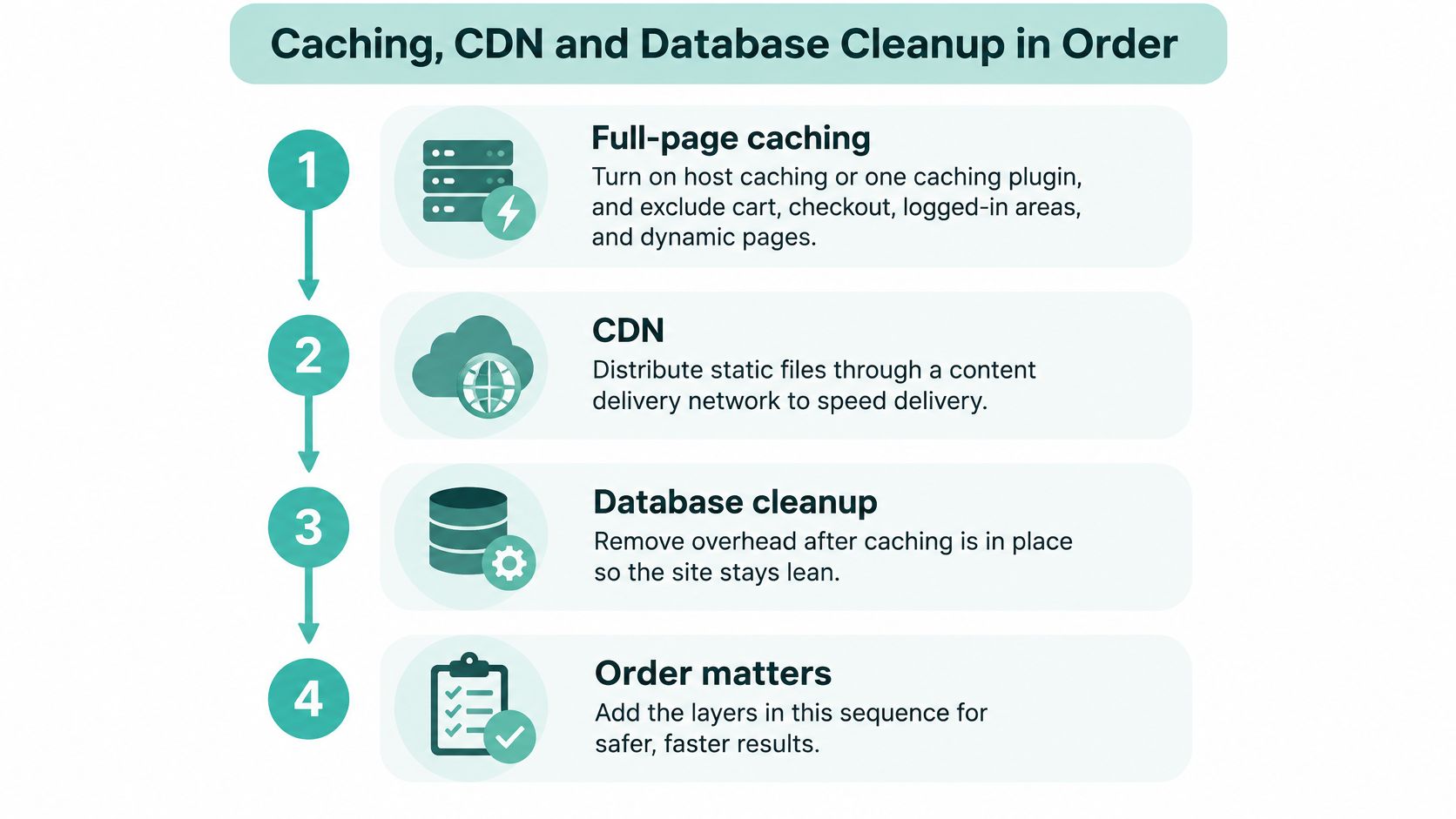
- Turn on full-page caching: Use the host's server-level cache or one caching plugin, never two competing systems. Exclude the cart, checkout, logged-in areas, and pages with dynamic forms, because caching those can serve stale content or break submissions outright.
- Add an object cache: Enable Redis or a similar persistent object cache when your host supports it and the site runs many database queries per page. A simple brochure site may gain little, so measure query counts before and after rather than assuming.
- Move static files to a CDN: Serve images, CSS, JavaScript, and theme files from a content delivery network so the origin server handles less traffic and visitors download from a closer location. Afterward, submit a real form and confirm the phone number, map, and chat still load.
- Back up, then clean the database: Take a full backup before clearing post revisions, expired transients, and leftover session data. Aggressive cleanup can remove settings the site still needs, and a backup turns that mistake into an inconvenience instead of an outage.
- Review autoloaded options: Inspect what's set to autoload on every request and remove entries left behind by plugins you deleted months ago. Dead plugins shouldn't tax every pageview.
- Profile the slowest template: Run Query Monitor on it, count the queries, and hunt for duplicates, where two plugins fetch the same data separately. Removing one redundant call pattern often beats broad, risky cleanup.
Success looks specific. You want a stable TTFB under 800 ms in field data and a per-page query count you can explain line by line, or a documented reason the count is higher. If you can't say what a layer changed, you can't say whether to keep it.
Theme, Plugin and Script Fixes That Keep Lead Forms Working
Strip every third-party widget and your lab score will climb. Your lead count may fall off a cliff. Owners delete chat widgets, review tools, map embeds, tracking tags, and appointment systems to chase a number, then wonder why attribution went dark and inquiries dropped. A script that produces qualified calls is revenue, not dead weight.
Simple upgrades rarely rescue you either. CoreWebVitals.io's protocol comparison for WordPress found HTTP/3 reduced median TTFB by only 39 ms versus HTTP/2, while the proportion of sites with good LCP was 76% on HTTP/3, 76% on HTTP/2, and 75% on HTTP/1.1. Switching protocols is fine. Expecting it to fix a heavy page is not. The same caution applies to optimization plugins, since one plugin-associated sample reported 76% passing all three Core Web Vitals versus 63% overall, but that sample represented only 1.3% of WordPress sites.
Judge Every Script by the Leads It Produces
List every script and widget on your money templates. Mark which ones produce a measurable inquiry, meaning a call, an email, or a form submission you can count. Load those conditionally on the pages where they earn their keep, defer everything noncritical, and keep call tracking and form events intact through every change.
Say a multi-location roofing company embeds a map on each location page. The embed adds weight, but if it drives direction requests and calls, deleting it to win a lab test is a bad trade. Load it only on location pages, reserve its space so it doesn't shove content around, and move on.
Test form behavior across the browsers your visitors use, not just your own. It helps to plan browser coverage by market share so a deferred script that works in Chrome doesn't break intake in Safari. This kind of ongoing script and update discipline is also where structured WordPress maintenance and support earns its keep, since plugins and tags drift back in over time.
Judgment rule: Keep a script when field Core Web Vitals and completed leads both hold. Cut it when only the lab score improves.
Test, Deploy and Confirm the Gains
A fast page that loses a form submission has failed its job. Deploy changes in a way that protects lead tracking and gives you a clear path to roll back.
- Clone to staging and back up: Copy the live site to staging and take a full backup before changing code or settings.
- Apply one fix per deployment: A single change per release makes it easier to trace a regression to its cause.
- Test the lead paths: Submit a form, tap the click-to-call button, load the map, and open chat on a phone and desktop. Confirm the test lead reaches your inbox or CRM, then check your website visitor analytics to make sure the relevant events still register.
- Deploy in a quiet window: Choose a lower-traffic period and have a tested rollback plan ready.
After deployment, compare field data on the same URLs and devices against your saved baseline. PageSpeed Insights reports LCP, INP, and CLS; use the results to identify whether the remaining bottleneck is server response, page weight, or a script. Route each problem to the relevant fix rather than repeating changes that already worked.
Keep rankings in context. Core Web Vitals contribute to page experience, but faster pages do not replace relevant content. Compare organic landing-page clicks in Search Console with your baseline, and review form completions and click-to-call events by template. A lab score is useful only when lead volume holds.
Digital Skyrocket offers an SEO Audit and maintenance plans to help keep websites healthy. The company strategizes, designs, builds, writes, and SEO-optimizes websites, rather than only tuning sites built by someone else. Its approach to web design in Tyler, TX connects performance work with lead generation.
A practical three-week sequence is to fix the leading bottleneck and verify the forms and calls in week one, deploy and record before-and-after results in week two, then set a monthly script-versus-lead review in week three. Recheck field data after the updated rolling window reflects the changes.
If your WordPress site is slow on the phones your customers use, an audit can identify which templates and fixes affect leads. Digital Skyrocket offers an SEO Audit and ongoing maintenance for businesses that want performance improvements tied to qualified inquiries, not just a higher lab score.