

You're usually not searching for how to delete a Google business page on a good day. It's often tied to a real problem. A location closed. A rebrand went sideways. A former marketer still controls the listing. Or you deleted the profile content and the map pin is somehow still sitting there, confusing customers.
That's why most short tutorials fall short. They show the clicks, but they don't explain the trade-offs or the failure points. In practice, deleting a Google Business Profile is part interface task, part local SEO decision, and part cleanup job. If you choose the wrong path, you can wipe out reviews you meant to keep, leave a duplicate live, or end up with a phantom pin on Google Maps.
Table of Contents
- Deciding to Delete Your Google Business Profile
- Your Pre-Deletion Checklist
- How to Permanently Remove Your Business Profile
- Handling Duplicates and Unowned Listings
- SEO Consequences and Alternatives to Deletion
- Troubleshooting Common Deletion Problems
Deciding to Delete Your Google Business Profile
A business owner calls after selling a practice. Another needs to shut down a second location that never performed. A third is rebranding and assumes the cleanest move is to delete the old profile. Those situations sound similar, but the right action is often different.
If the business is closed for good, you may need a full removal. If the business was sold, ownership transfer is usually safer. If the company moved or rebranded, deletion can be the most damaging option because it can erase history that still helps customers recognize the business.
Here's the practical distinction:
| Situation | Best move | Why |
|---|---|---|
| Business permanently shut down | Consider deletion or closure workflow | Depends on whether you want the listing gone or preserved as closed |
| Business sold to a new owner | Transfer ownership | Keeps continuity instead of erasing the asset |
| Business moved | Update address, don't delete | Preserves listing history and customer trust |
| Duplicate listing exists | Remove or report the duplicate | Prevents confusion without sacrificing the main profile |
A lot of owners confuse Permanently Closed with actual deletion. They are not the same. Marking a listing closed leaves a visible record. Deleting profile content removes much more. Google's interface changed after the shift from Google My Business to Google Business Profile, and the deletion workflow now sits inside Google Search and Maps rather than the old standalone dashboard, which is why the process feels less obvious than it used to in this explanation of the platform shift.
Practical rule: If people may still search for the old business name and need context, closure is often safer than deletion.
For firms where reputation matters heavily, especially regulated service businesses, I'd rather see owners slow down and think through the public-facing consequences before clicking anything. If reputation cleanup is part of the problem, this guide to reputation management for personal injury attorneys is a useful parallel because the same principle applies. Remove the wrong asset and you don't just hide a problem. You can also remove trust signals you still needed.
Your Pre-Deletion Checklist
Deleting a profile goes much smoother when you treat it like a pre-flight check instead of a quick dashboard task.
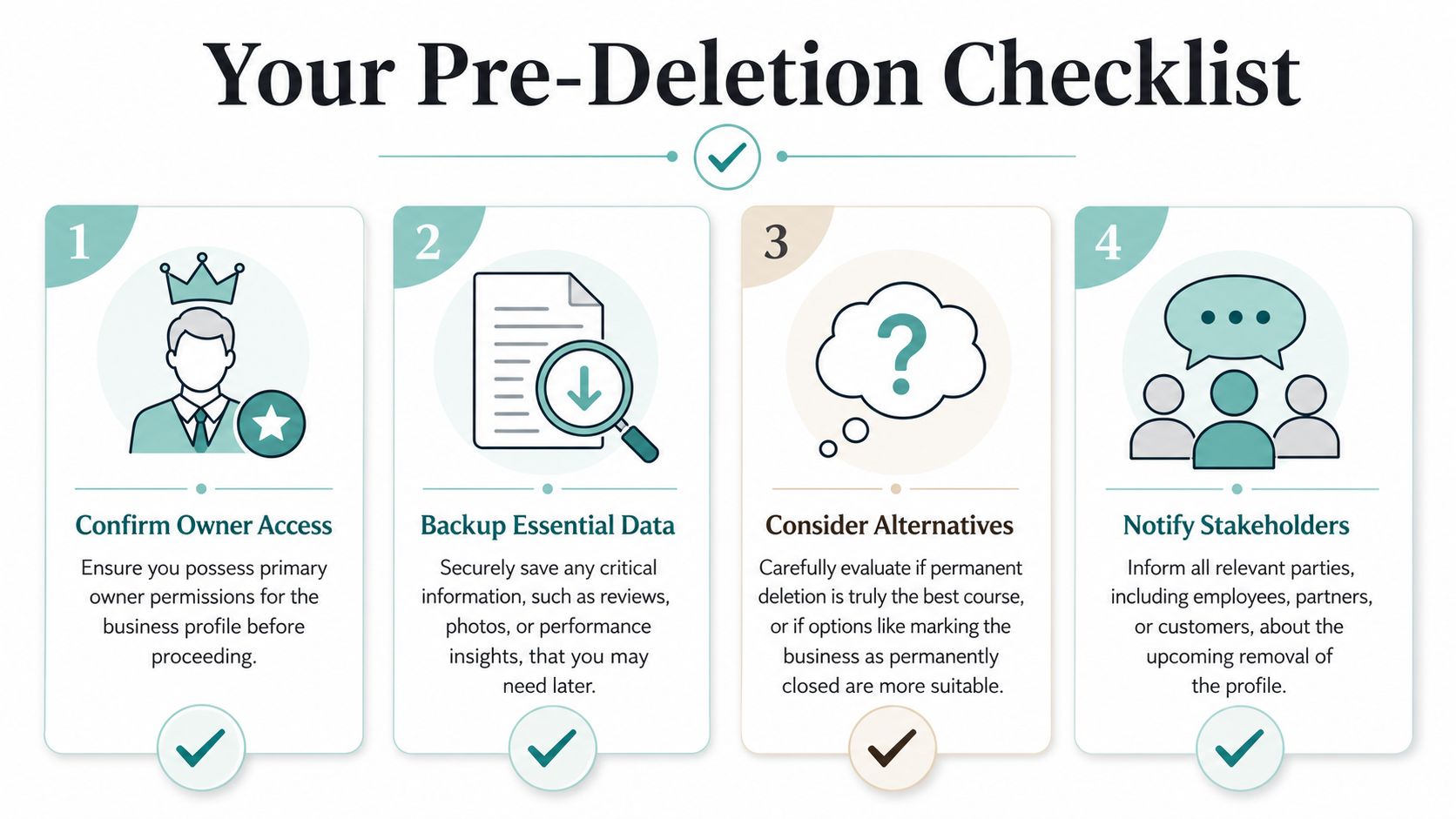
Confirm the role before anything else
The first thing to verify is your access level. Managers can't permanently delete a profile. Owners can. If you're logged into the wrong Gmail account, or if a former employee still holds primary control, the removal option may be missing or blocked.
That's not a fringe problem. 68% of failed deletion attempts stem from role misconfiguration or incomplete verification, according to the cited analysis in this YouTube walkthrough on GBP deletion errors.
Run this short check before you do anything else:
- Sign into the exact Google account tied to the listing.
- Open the Business Profile manager view.
- Check whether you're listed as Owner or Primary Owner.
- Resolve any pending verification prompts first.
If you're trying to remove a listing because the location moved, don't skip the possibility that a profile edit is the better fix. This walkthrough on how to change your Google business address is worth reviewing before you go further.
Save what you won't get back
Once profile content is removed, you can't count on getting reviews, photos, posts, and other public assets back. Before deletion, archive anything you may want for your records or website.
Focus on these items:
- Reviews: Copy the text into a document or CRM note.
- Photos: Download original images if you don't have them elsewhere.
- Posts: Save any announcement copy, offer language, or event messaging.
- Business details: Keep a record of categories, services, hours, and contact data.
Save first, delete second. Owners often remember too late that their GBP held years of customer language they could have reused on their website.
One more thing trips people up. Duplicate listings can make the wrong profile look like the obvious candidate for deletion. Before removing anything, search the business name, old address, phone number, and any former DBA variants in Google Search and Google Maps. You need to know whether you're deleting the true primary profile or a duplicate that should be reported instead.
How to Permanently Remove Your Business Profile
This is the part most readers came for. The clicks matter, but the exact wording matters just as much because Google offers more than one “removal” action, and they do very different things.
Use the current Google interface
The old Google My Business dashboard trained a lot of owners to expect a simple remove-listing button. That's not how it works now. Google Business Profile management is integrated directly into Google Search and Maps, so you need to work from the account that owns the profile.
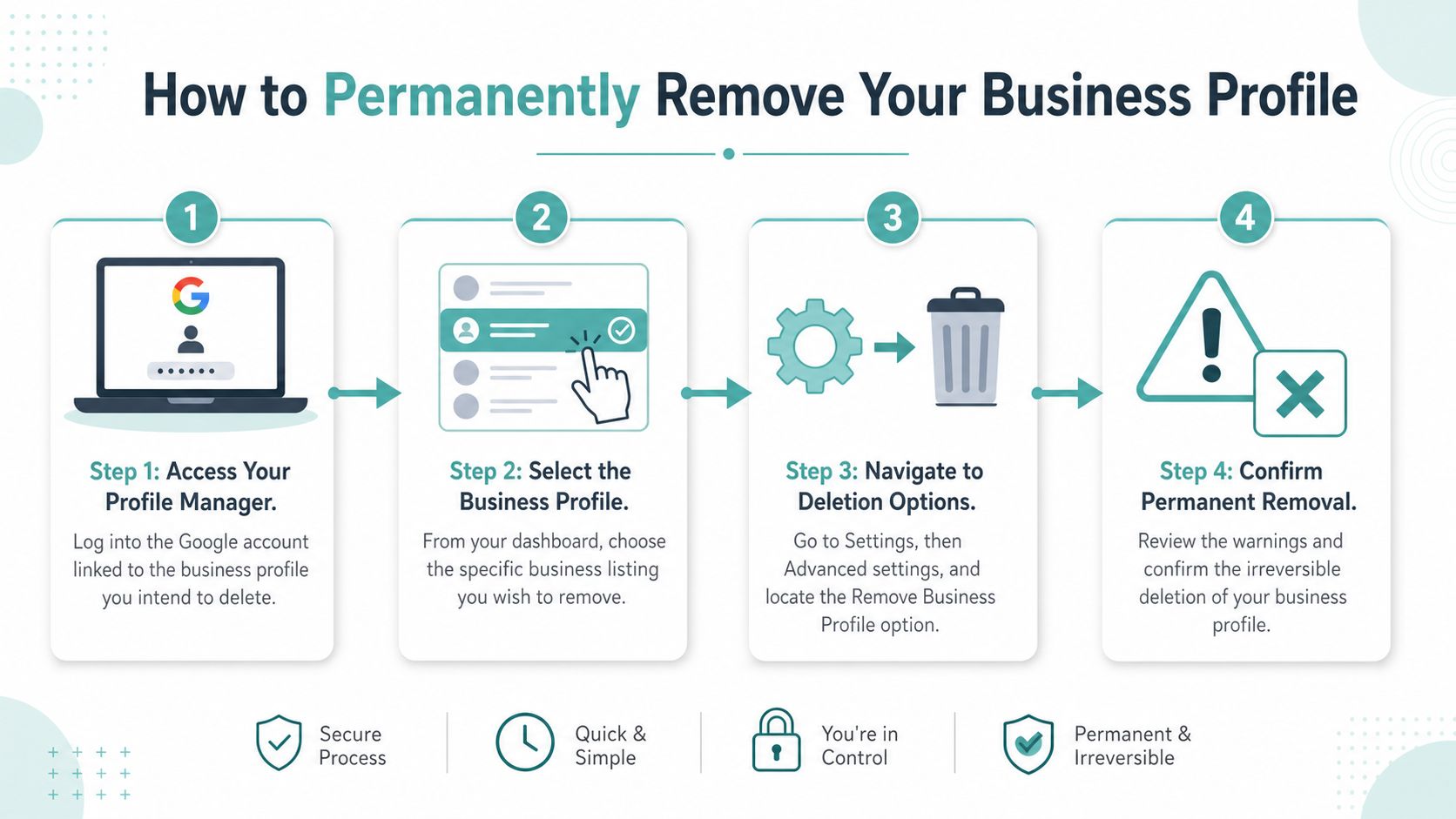
The cleanest route is to go to business.google.com and use the verified-owner removal path shown here. According to that walkthrough, you must access the business, click the three-dot Actions menu, choose Remove Business Profile, and then select Remove Profile Content and Managers. Only a verified owner can do this.
Follow the exact removal path
Use this sequence carefully:
Sign in with the owner account
Don't assume any company Gmail will work. It has to be the account with owner-level access.Select the correct business
If you manage more than one location, slow down here. Owners sometimes remove the wrong listing because the names are similar.Open the three-dot menu or profile settings
Look for the business settings area tied to that specific profile.Choose Remove Business Profile
This gets you to the actual deletion options.Select Remove Profile Content and Managers
This is the irreversible action that removes content and access.Read the confirmation prompt before accepting
Google states that the profile will be removed from Search and Maps.
A short comparison helps:
| Option | What it does | What it does not do |
|---|---|---|
| Stop Managing This Profile | Removes the listing from your account | Does not remove the public listing |
| Remove Profile Content and Managers | Removes profile content and manager access | Does not automatically solve every map-pin issue |
| Mark as Permanently Closed | Shows the business as closed | Does not delete the listing |
Many deletion attempts go off course at this point. Owners click the less-destructive option because it sounds safer, then wonder why the listing is still visible. The wording is subtle, but the outcome isn't.
If your goal is full removal, “Stop Managing” is the wrong button.
Expect some lag after submission. Google may take time to process the removal across Search and Maps. During that period, don't re-create a duplicate listing out of panic. That only makes cleanup harder.
Handling Duplicates and Unowned Listings
Some of the hardest Google Business Profile problems have nothing to do with deletion menus. They come from messy ownership history, duplicate profiles, and old listings created by someone you no longer work with.
When the wrong listing is a duplicate
A duplicate usually shows up in one of three ways. An old address still has a listing. A former version of the business name generated a second profile. Or Google created a place entity that never matched your managed profile cleanly.
When that happens, don't start by deleting the profile you know is yours. Start by identifying the canonical listing, meaning the one with the correct name, address, phone, and strongest history. Then compare the others against it.
Use this decision guide:
- Same business, same location, two listings: Keep the stronger profile and report the extra one.
- Same business, old location: Update or report based on whether the move is legitimate and documented.
- Old practitioner or old department page: Review whether it should be removed, closed, or separated.
A duplicate isn't always deleted from the dashboard. In many cases, it's handled through Google Maps edits or ownership resolution.
When you don't own the profile
This is the scenario most lightweight tutorials ignore. You search your business name and the listing is live, but the owner is a former employee, an agency you fired, or nobody on your team can access it.
That's not rare. Recent data from 2025 shows that 34% of service businesses in the U.S. face profile ownership disputes due to former employees or third-party marketers retaining access, according to this discussion of unclaimed and disputed profiles.
Your practical options are:
- Claim the profile first: If Google allows it, start the ownership claim process.
- Request access from the current owner: This works when the relationship is intact and someone still checks that email.
- Use Suggest an Edit: If the place is closed or shouldn't exist, submit a public edit with evidence.
- Gather proof: Closure notice, lease termination, business registration change, signage photos, or other clear proof can help.
If you can't access the dashboard, your path is no longer account management. It becomes evidence-based correction.
For an unowned listing that represents a closed or non-existent business, open the place in Google Maps, choose Suggest an Edit, and select the option that best matches reality. Be precise. “Permanently closed” and “Doesn't exist here” are not interchangeable. Use the one that reflects the actual situation on the ground.
SEO Consequences and Alternatives to Deletion
Deleting a profile isn't just an admin task. It changes how you appear, or stop appearing, in local search.
What deletion costs you
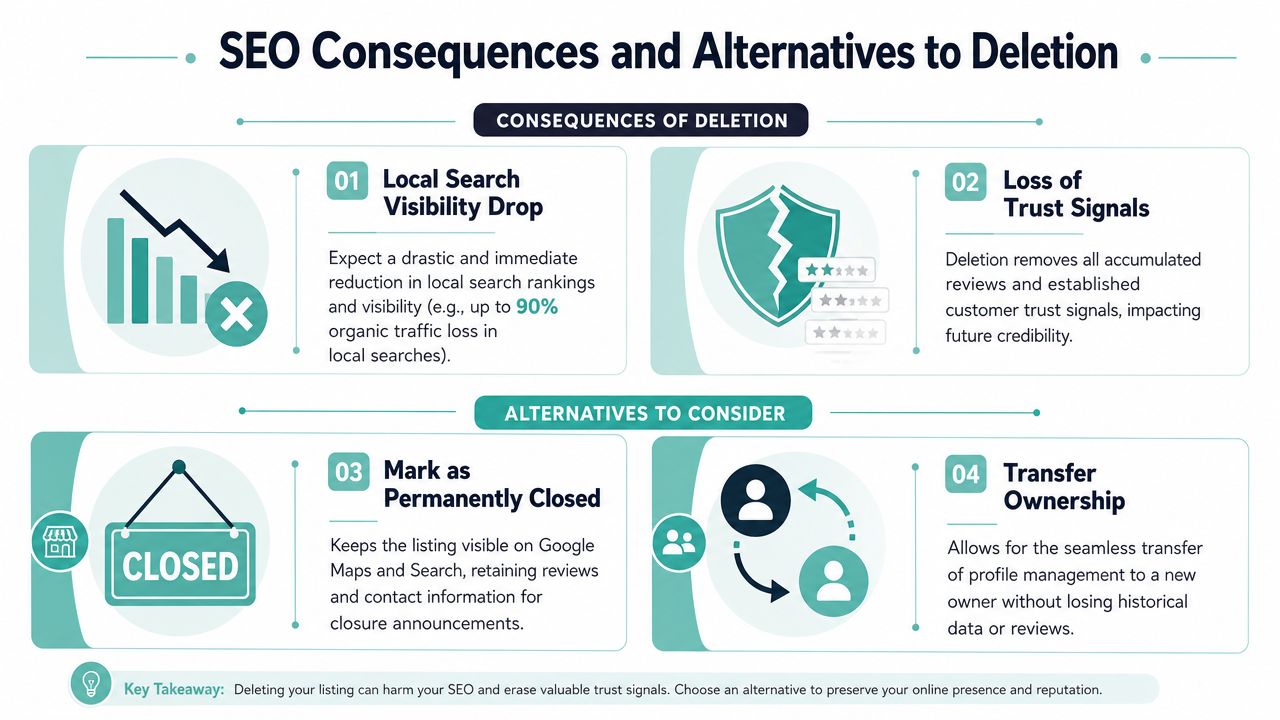
When a business page is deleted, it loses its connection to the Local Pack, which historically accounts for 30% of all clicks in local search results, based on this removal-impact analysis. That matters because local service businesses often get their most purchase-ready traffic from map-driven searches.
The same source notes that for service companies, especially legal and medical practices, deleting the profile can cause an immediate 40-60% drop in qualified inbound inquiries. That's the practical reason experienced SEOs hesitate before recommending full removal.
The losses are not abstract:
- Reviews disappear
- Photos disappear
- Posts disappear
- Map visibility disappears
- Call and direction-request history no longer helps the listing
If you're in a highly competitive local market, that can wipe out a key acquisition channel. This is one reason businesses investing in Google Business Profile SEO for personal injury firms usually focus on preserving and improving the profile, not deleting it.
Better options in the right situation
Sometimes the better move is operationally boring but strategically smarter.
| Scenario | Better alternative | Why it helps |
|---|---|---|
| Business sold | Transfer ownership | Preserves continuity and existing equity |
| Business closed but still searched | Mark permanently closed | Gives customers context instead of a dead end |
| Location moved | Update profile details | Keeps review history intact |
| Duplicate issue | Remove the duplicate only | Protects the main listing |
A closed listing can still serve users by confirming the business is no longer operating. A transferred listing can preserve years of trust signals. A corrected address can avoid a self-inflicted SEO loss.
Deletion makes sense when the profile itself should no longer exist. It's a poor substitute for cleanup, ownership transfer, or an address update.
Troubleshooting Common Deletion Problems
Even when you follow the menu path correctly, Google Business Profile removal can stay messy for a few days.
Why the pin is still visible
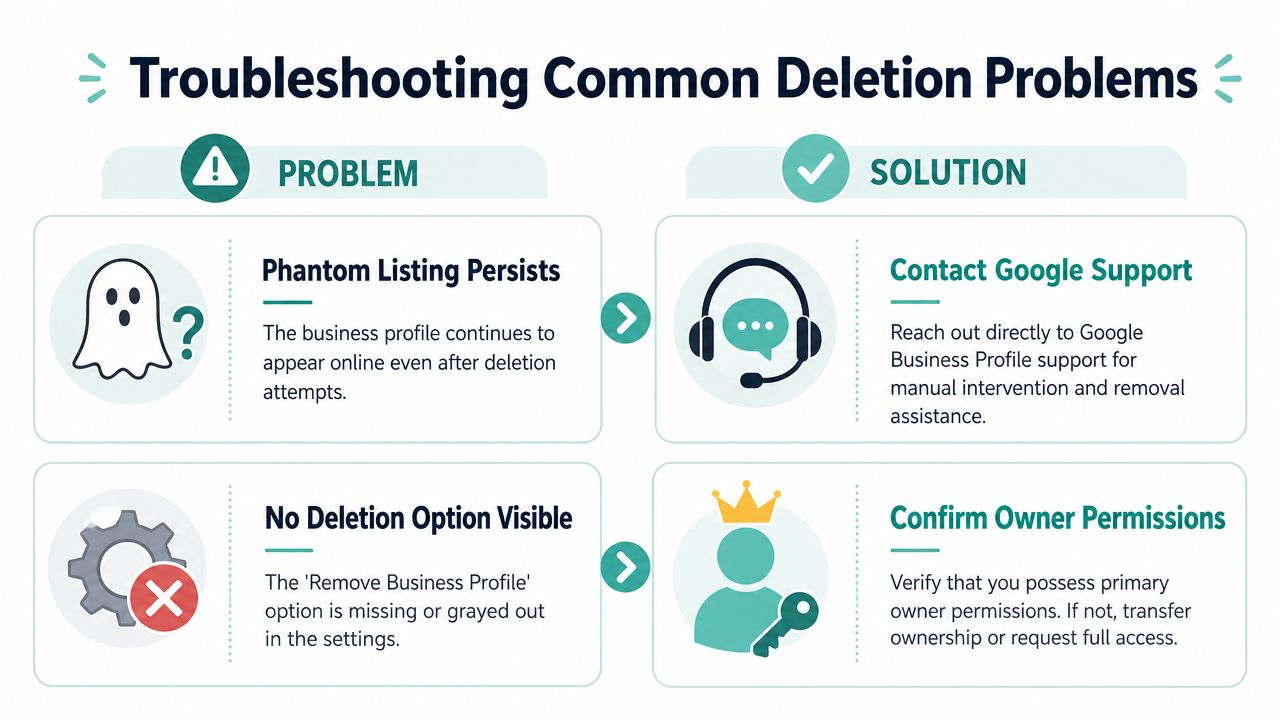
The biggest surprise is the phantom listing. You remove profile content and manager access, yet the place pin remains visible on Google Maps.
That happens because removing profile content doesn't always remove the underlying map entity. Most guides skip that second layer. According to this guide focused on permanent listing removal, up to 60% of closure attempts fail because owners skip the separate Suggest an Edit step, leaving a visible closed pin behind.
To clean that up:
- Open the listing in Google Maps from a separate personal account if possible.
- Click Suggest an Edit.
- Choose the option that matches reality, usually Doesn't exist here or Permanently closed.
- Submit any supporting evidence if Google requests more detail.
- Check back after processing instead of resubmitting repeatedly.
Fast answers to common problems
No delete option appears
You're likely not logged in as an owner, or verification is incomplete.
I clicked Stop Managing and the listing is still live
That's expected. You removed your access, not the public profile.
Can I recover a deleted profile?
Treat the action as irreversible. If you may need the listing later, stop and consider closure or transfer instead.
How long until it disappears?
Processing isn't always immediate. Give Google time to reflect changes across Search and Maps before assuming the attempt failed.
What if the listing still shows as closed?
That usually means the profile content step and the map-pin step didn't both happen.
If you need help sorting out a duplicate, disputed ownership, or a messy local SEO problem tied to your website, Digital Skyrocket works with service businesses that want a stronger website and ongoing SEO, not one-off quick fixes. If your Google Business Profile issue is part of a larger lead-generation problem, they're worth contacting.